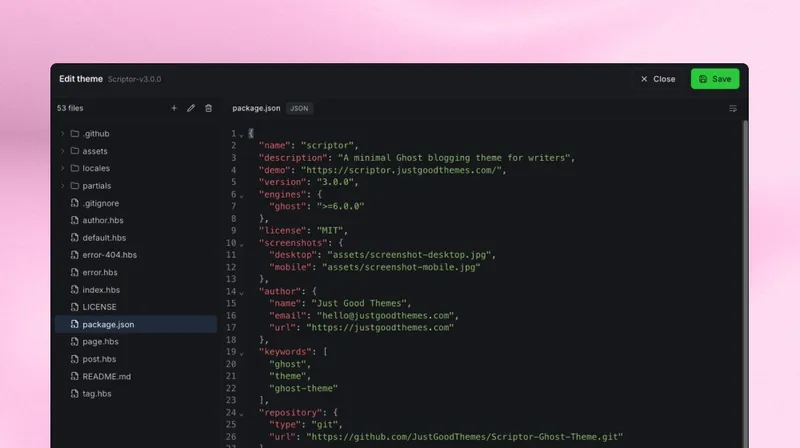
Ghost v6.39.0 introduced a built-in theme code editor. Before this, even a small theme change meant downloading your theme as a zip file, opening it in a code editor on your computer, making the change, zipping the theme again, and uploading it back to Ghost.
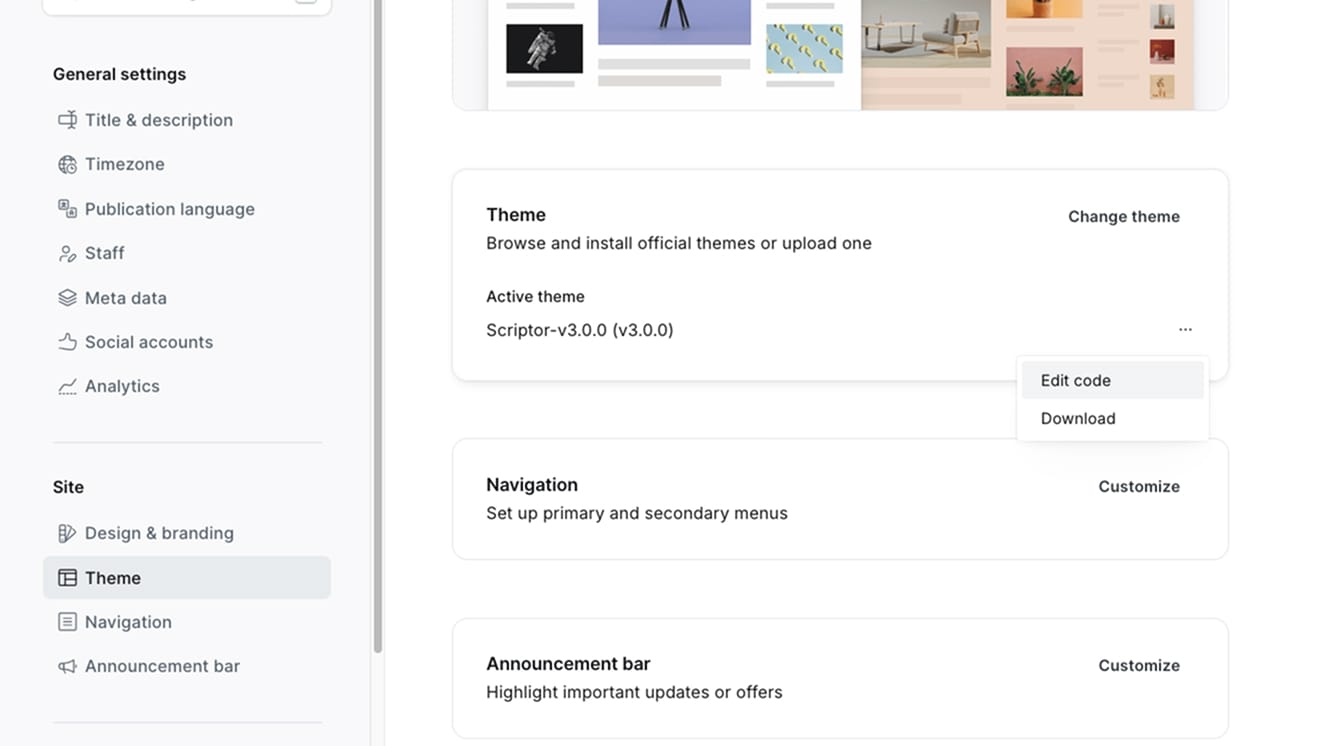
Now the workflow is much simpler. Go to Settings → Theme in Ghost Admin, open the menu next to your active theme, and click Edit code.
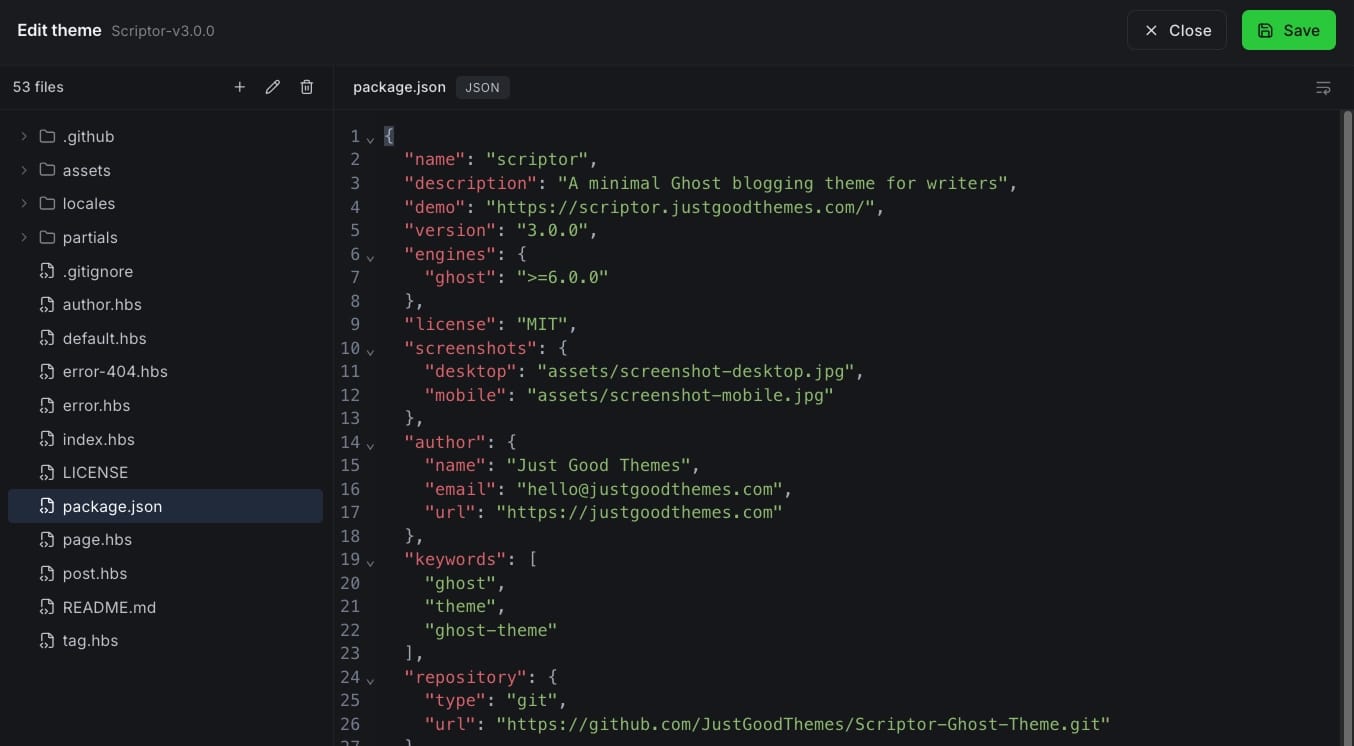
This opens the theme editor directly in your Ghost Admin, with all the theme files listed in the sidebar.
Think of the theme editor as a convenient place for small, focused changes, such as, updating theme settings, tweaking small bits of template markup, or adding a link. If a change needs testing across templates, version control, or a build process, it still belongs in your local development workflow.
To show how the editor works in practice, I'll use Scriptor, a free Ghost theme for personal blogs and publications developed by us at Just Good Themes.
Changing the number of posts per page
By default, Scriptor shows 6 posts per page. Let's increase that number to 8.
Previously, you would have to download the theme, open package.json, change the setting, zip the theme, and upload it again. With the theme editor, you can make this change directly in Ghost Admin.
Open the editor and select the package.json file in the theme root directory. Find the posts_per_page property.
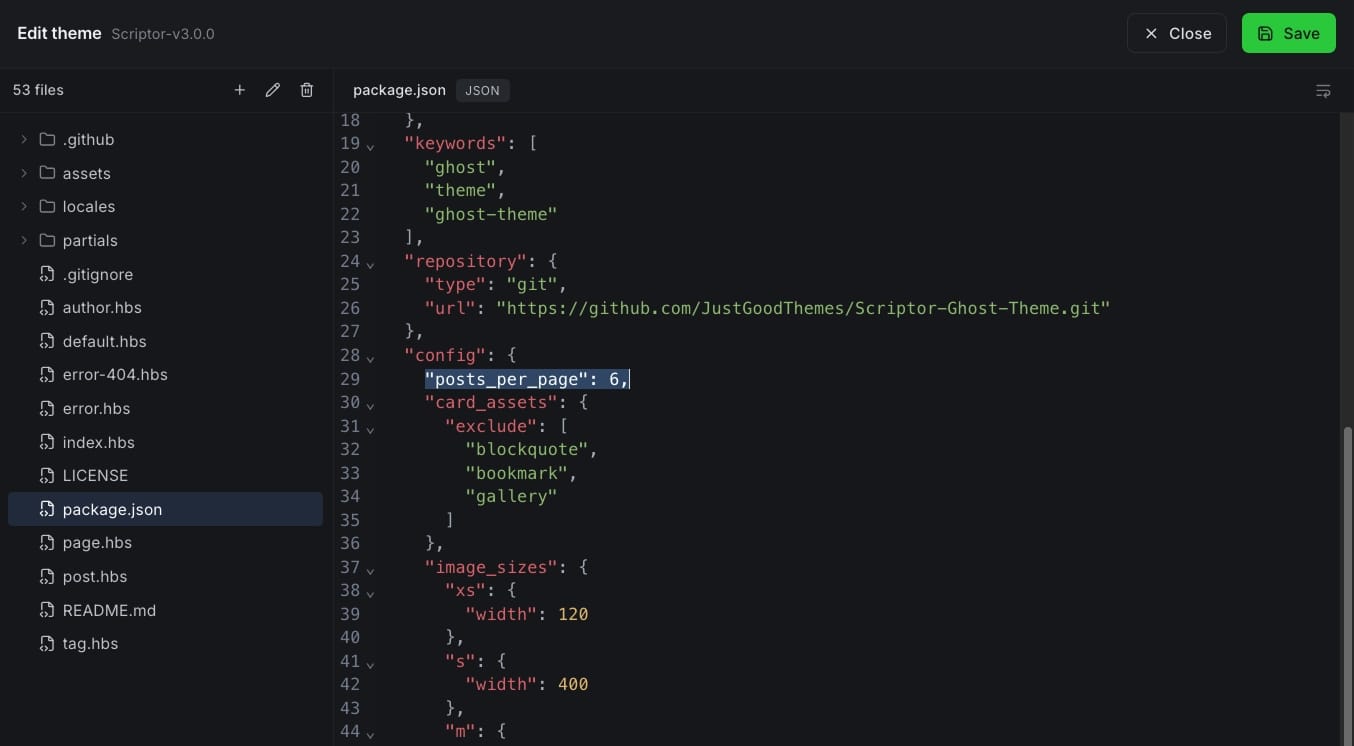
Update the property value from 6 to 8.
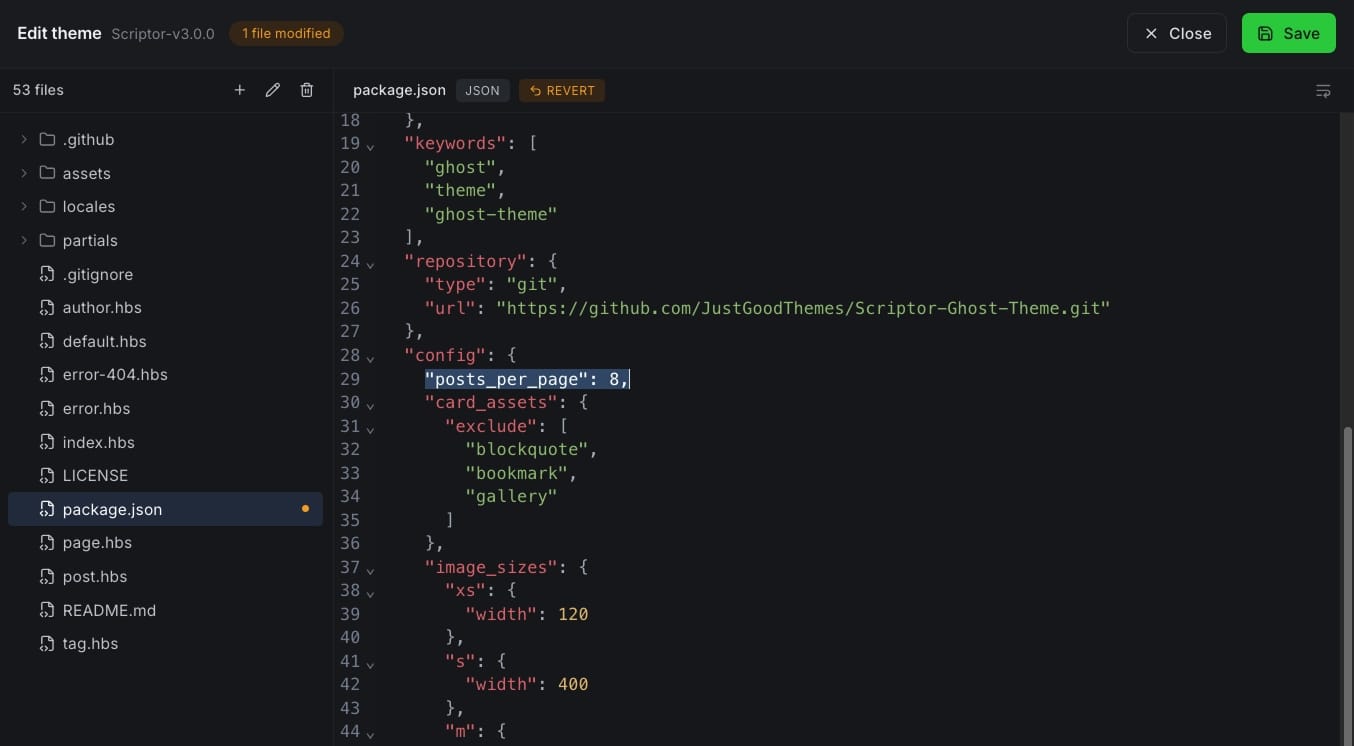
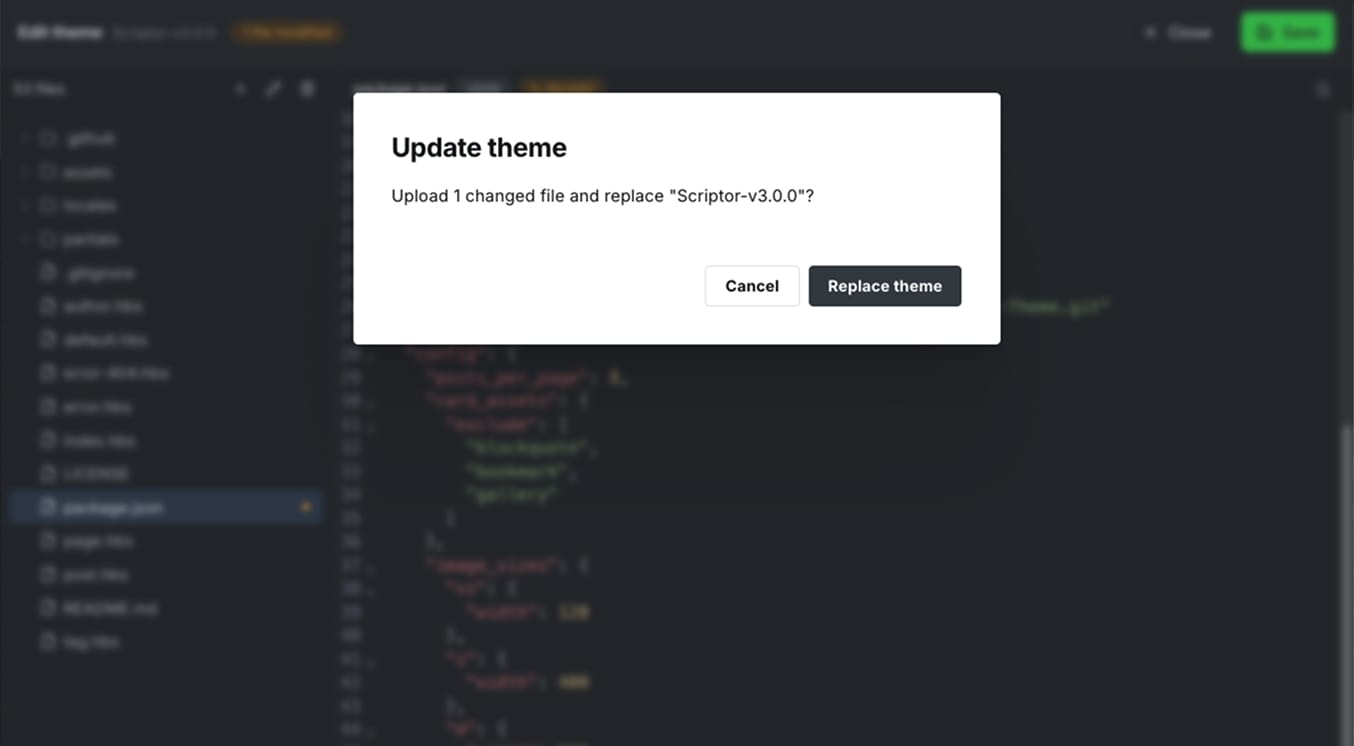
Click Save in the top-right corner. Confirm the change by clicking Replace theme in the popup and close the editor.
Refresh your site, and the post listing should now show 8 posts per page instead of 6.
That's it: no downloading, no zipping, and no re-uploading the theme.
Adding a GitHub icon to the footer
Let's make one more small adjustment.
Say you want to display a GitHub icon on your site. Since GitHub is not included in Ghost's built-in social links, you need to add it manually.
To make it easier to extend the theme, we intentionally include more social icons than Scriptor uses by default. So you will find GitHub icon already available in the partials/icons directory.
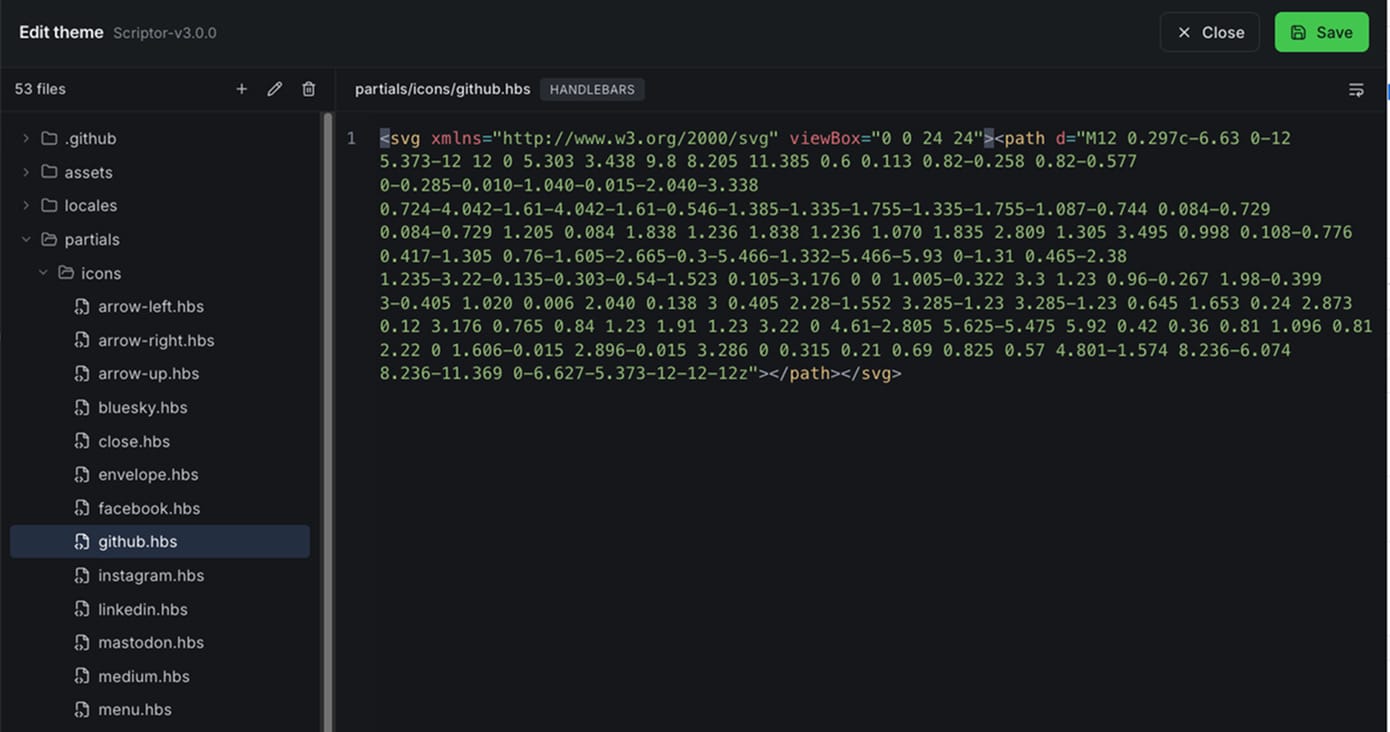
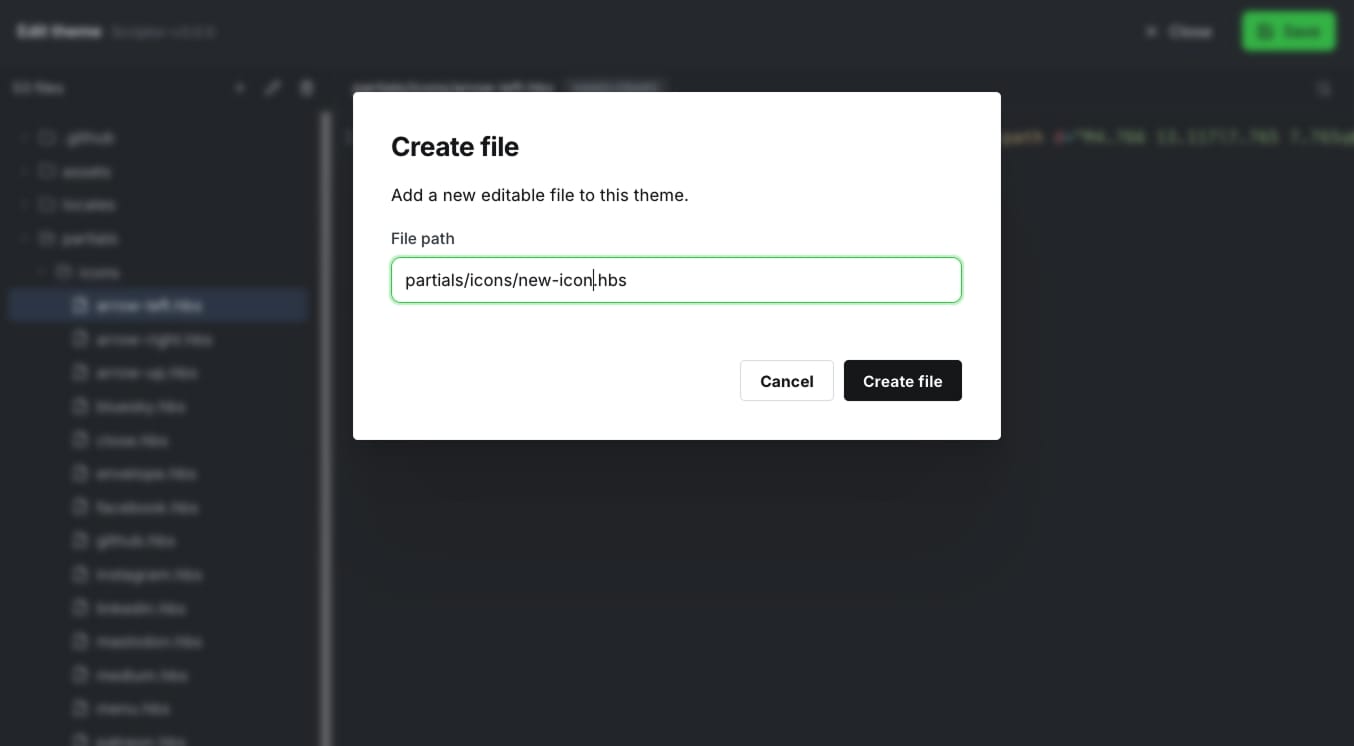
If the icon you need is not included, you can add it yourself. Simply click the + icon at the top of the theme file list, create a new file in partials/icons, and paste in the icon markup.
In Scriptor, the social links are displayed in the footer, so open the footer.hbs partial located in the partials directory.
Copy one of the existing social links and update the href, aria-label, and icon partial name.
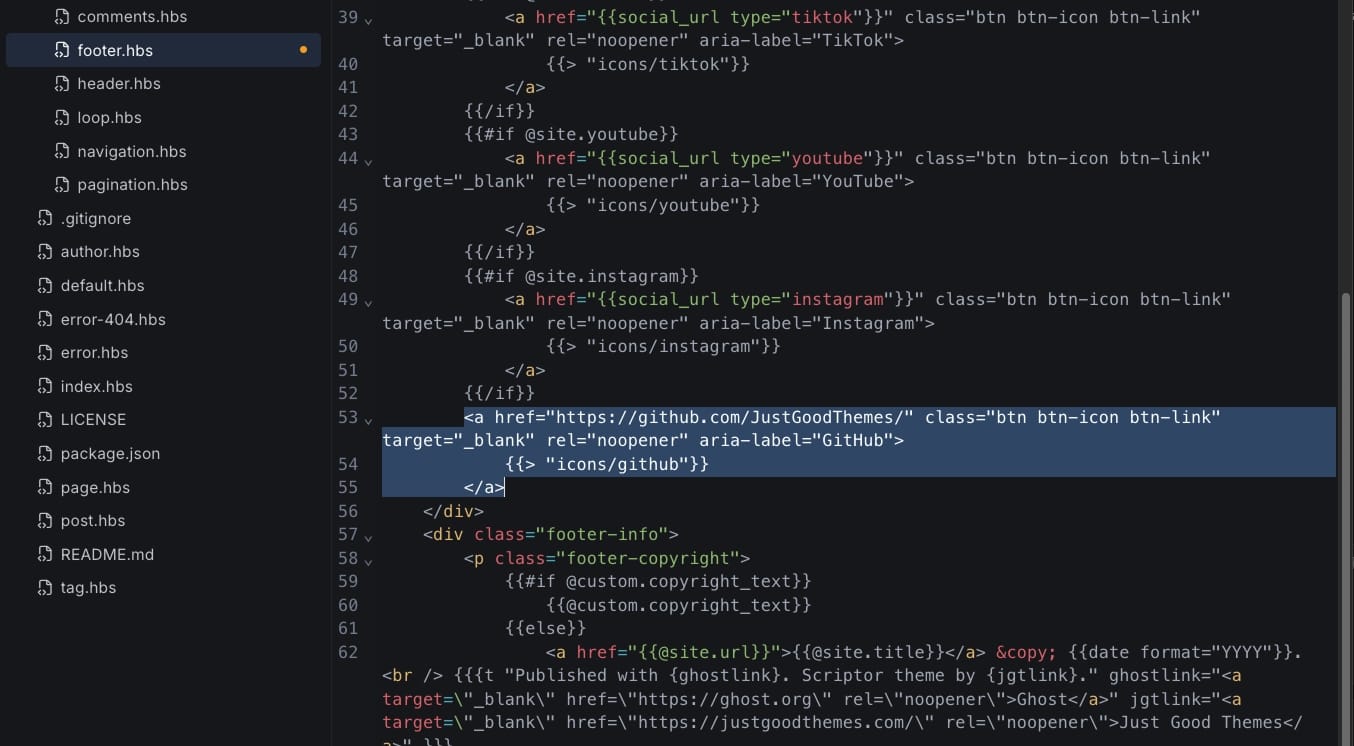
Save the changes and refresh your site. You should now see the GitHub link alongside the other social links in the footer.

A Smoother Theme Workflow
The real benefit is speed. Instead of leaving Ghost Admin for every small adjustment, you can make simple changes where you already manage the site. The download-edit-zip-upload workflow is still there when you need it, but it no longer has to be part of every tiny customization.
Member discussion